
How to Watch Security Cameras on Your Phone: Remote Viewing Setup (2026)
Table of Contents
The theft you cannot see is the theft you discover too late. Typical loss-prevention reviews find that incidents reported hours after they happen could have been stopped with a live view from a phone. A shop owner is 20 km away. A warehouse manager is on a business trip. A farmer checks gates after dark. All of them need the same thing: the ability to watch cameras on phone from anywhere. Remote viewing is not a luxury feature anymore. It is the reason most buyers replace an old DVR-only system at all.
This guide walks through the complete setup. You will learn how P2P remote access works and what the QR code and UID on your camera actually do. You will add the camera in the app, view it on the local network, and reach it over 4G or any internet connection. You will also watch several cameras at once and set up motion alerts. Every step carries typical numbers: setup time, stream bandwidth, cellular data use, alert latency. If you want to "view security camera on phone" without opening router ports or paying a monthly fee, this is the exact sequence.
Keep reading for more!
The Snapshot
- Free P2P remote viewing: no static IP, no port forwarding, no DDNS account and no monthly fee. The app introduces itself through the vendor relay, and video flows over an encrypted connection.
- Typical setup time is 5-10 minutes per camera: scan the QR code on the device, or type the 20-character UID if the sticker is missing, and the camera appears in the app.
- Dual streams keep remote viewing smooth: the main stream runs at 2-4 Mbps for recording and zoom, while the sub-stream runs at 0.5-1 Mbps for phone viewing on weak networks.
- Remote viewing over 4G needs about 2-4 Mbps upload for a smooth main stream. The sub-stream stays usable on a 3 Mbps connection.
- iOS and Android apps push motion alerts in 1-3 seconds; one account manages 32-64 cameras in a 4/9/16 split grid.
How P2P Remote Access Works
P2P (peer-to-peer) is the technology that lets a phone on any network reach a camera behind any router without opening ports. Each camera holds an outbound connection to the vendor relay server. That connection is a small handshake channel, not a video pipeline. When you open the app and scan the device QR code, the relay introduces your phone to the camera. Video then flows over an encrypted peer connection. If a direct path is blocked, the relay carries the stream instead.
Every P2P camera carries a unique identifier called the UID. It is typically a 20-character string of letters and digits. The UID is printed on a sticker on the camera body and on the box. The QR code encodes the same UID. Scanning the QR code or typing the UID tells the app which camera to contact through the relay. Because the camera dials out, no router port is opened, which is why P2P does not weaken your firewall the way port forwarding does.
The practical result: any camera with free P2P gives you remote viewing security camera access from a phone in minutes, at zero monthly cost. That is the difference between a camera you rent and a camera you own.
The video path is worth understanding before you rely on it. The relay only introduces the two devices; the live stream itself is encrypted between your phone and the camera. A typical 1080p stream carries a few megabytes per minute, and the relay never stores footage. When you share camera access with a colleague, the app issues a separate viewer account. You can revoke that access later without changing the camera password.
What You Need Before You Start
Remote viewing setup needs five things. Gather them before you open the app. The whole process then takes minutes instead of an afternoon.
| What you need | Typical spec | Setup role |
|---|---|---|
| Smartphone | iOS 12+ or Android 8+ | Runs the vendor app for live view and alerts |
| Vendor app | Free download from the App Store or Google Play | Adds cameras and shows video |
| P2P QR code or UID | 20-character code on camera and box | Identifies the camera to the relay |
| Internet uplink at the site | 2-4 Mbps upload for the main stream | Carries video to your phone |
| Camera credentials | 12+ character admin password | Secures the camera before remote access |
← swipe to scroll →
For a WiFi camera, keep the 2.4 GHz band enabled during first setup. The 5 GHz band is faster but shorter range, and most P2P onboarding works on 2.4 GHz. For a 4G camera, insert the SIM card and confirm the cellular signal strength in the app before adding the device. Full installation guidance for each type lives in our wifi camera guide and ip camera guide. The camera hardware itself is covered on the ip cameras and wifi cameras product pages. A 4G camera with its own SIM is the right choice for a site with zero broadband.
Step 1: Scan the P2P QR Code
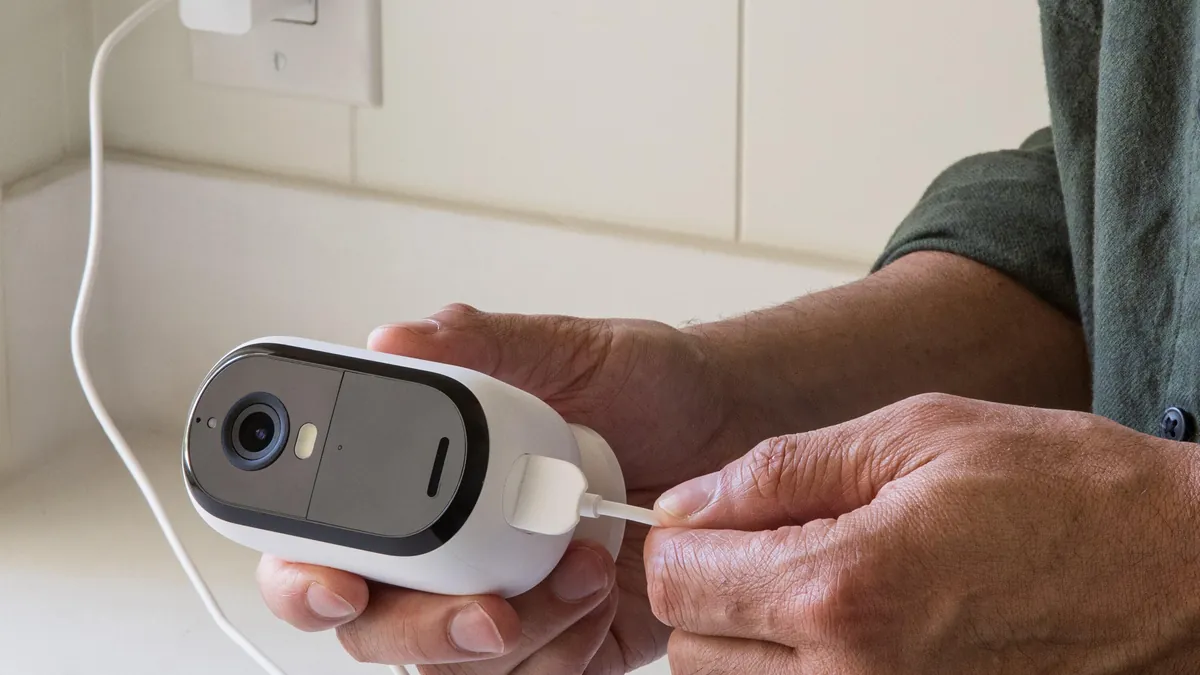
Power on the camera and let it boot, typically 30-60 seconds. Open the vendor app, create an account if you have none, and tap the add-device button. The app asks for a QR scan. Point the phone at the QR code sticker on the camera body or the box, and the app reads the UID automatically. Typical scanning takes under 10 seconds.
1.1 If the sticker is missing
Every P2P camera also carries the UID as printed text, usually 20 characters. Type it into the manual entry field. Some apps also find cameras on the same local network automatically, which works even when the sticker is gone.
1.2 Scan quality
Clean the sticker, avoid glare, and hold the phone 10-20 cm away. A smudged or scratched QR code is the most common first-attempt failure. If the scan fails twice, type the UID instead.
Step 2: Add the Camera in the App
After the scan, the app walks through the security camera app setup: name the device, set the admin password, and join it to the network. Most "phone app cctv" searches land here, because this is where people get stuck on WiFi credentials or weak passwords.
2.1 WiFi cameras
Enter the WiFi SSID and password. Use WPA2 or WPA3 encryption on the router. Typical onboarding connects within 30-60 seconds. If it fails, move the phone closer to the camera during the handshake.
2.2 Passwords first
Set a unique admin password of 12+ characters with mixed case, numbers and symbols. Do not reuse the router password. This single habit blocks most real-world camera compromises, because default credentials are the first thing scanners try.
2.3 Verify the add
When the camera appears in the device list with a green online status, the add is complete. Rename it by location, for example "Front Gate" or "Warehouse Aisle 3", before adding the next one. Clear names make later multi-camera views much easier.
Step 3: View Cameras on the Local Network
On the same WiFi as the camera, the app shows the live view almost instantly, with typical latency under 0.5 seconds. This is the fastest way to "view cctv on phone" during installation. It also confirms the camera, the network and the app are all healthy before you test remote access.
3.1 Which stream the phone uses
Modern cameras run dual streams. The main stream runs at 2-4 Mbps at 4MP with H.265, and is for recording and zoom. The sub-stream runs at 0.5-1 Mbps, and is for phone viewing. The app picks the sub-stream by default on live view, which is why the phone image stays smooth even on a busy network.
When the live view opens, check three things in the first minute. The image should be sharp at the center of the frame. The timestamp should match the current time. The camera name should match the location you assigned in Step 2. These three checks catch the most common handover complaints before they reach the integrator.
3.2 Test zoom and playback
Pinch to zoom into the main stream and confirm the detail is usable. Open playback from the camera's SD card or the recorder to confirm recordings exist. Do this while you are still on site, not after you leave.
Step 4: Remote Viewing over 4G or WiFi
Now the test that matters: switch the phone to cellular data, or connect to a WiFi network away from the site, and open the camera. A remote viewing security camera setup is complete only when the image arrives over the internet, not just over the local network.
4.1 The P2P handshake
The app contacts the relay, the relay introduces your phone to the camera, and video starts, typically within 1-3 seconds. If the first attempt shows a black screen, wait 5 seconds and retry. The handshake can be slow on poor cellular coverage.
4.2 Bandwidth requirements
The sub-stream needs only 0.5-1 Mbps, so it works on 3G-class connections and weak hotel WiFi. The main stream needs about 2-4 Mbps upload at the camera site and 2-4 Mbps download on the phone for smooth 1080p viewing. If the site upload sits below 1 Mbps, stay on the sub-stream and accept a softer image. Remote bandwidth planning for a whole fleet lives in the bandwidth section below.
4.3 4G cameras for sites with no internet
For a remote site with no broadband, a 4G security camera carries its own SIM card and dials out over the cellular network. Typical data use is 1.5-3 GB per day per camera on the main stream at 1080p continuous. On the sub-stream it drops to 0.3-0.6 GB per day. Many owners view on motion events only and stay under a 5-10 GB monthly plan. Our 4g cameras product page lists the current models with their SIM and plan requirements.
4.4 Security on remote access
P2P keeps the camera behind the firewall, which is the secure default. Change the default password, enable two-factor authentication on the app account if it is offered, and do not share the account password with staff. Create viewer accounts with limited rights instead.
Step 5: Watch Multiple Cameras at Once
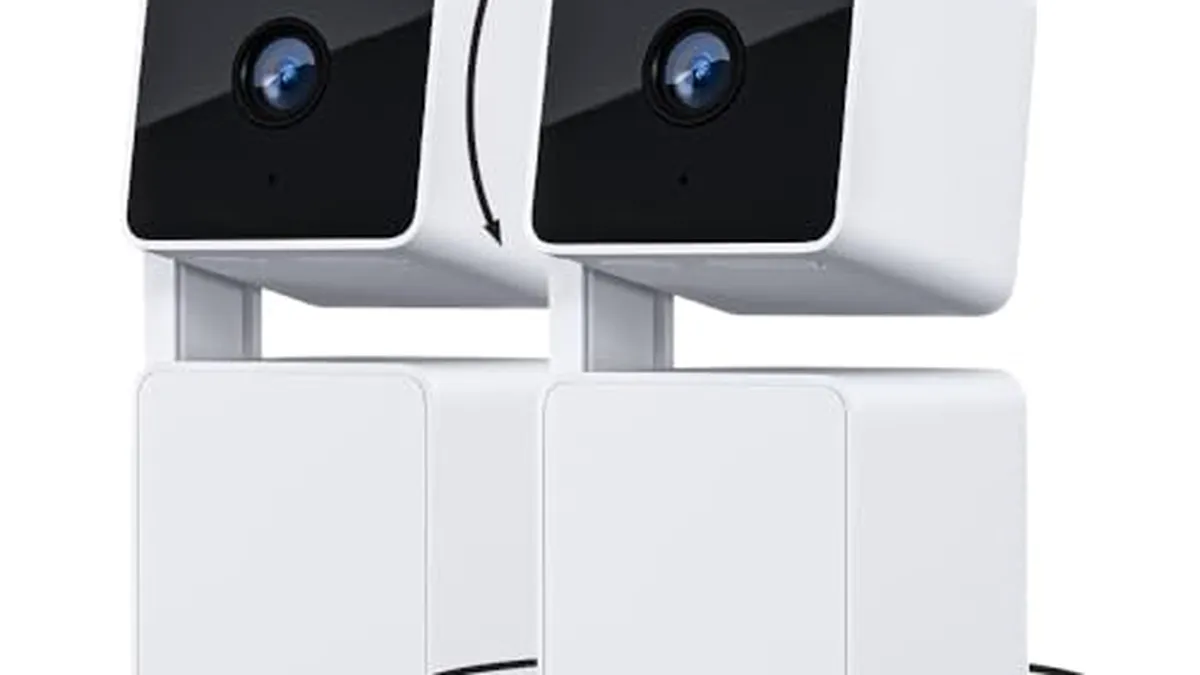
Once two or more cameras are added, the app offers a multi-view grid. Typical layouts are 4, 9 or 16 tiles on a phone, and more on a tablet or computer. Each tile shows the sub-stream, so a 16-camera grid pulls roughly 8-16 Mbps total, which most home broadband and 4G connections handle.
5.1 Group by site
Create groups in the app, one per location: "Factory Floor", "Yard", "Office". Tapping a group opens its grid. This is how a fleet of 20-60 cameras across several sites stays manageable from one phone.
5.2 One account for a fleet
One P2P account typically manages 32-64 cameras. For integrators, that means one app, one account and one login for every customer site, with per-user permissions. Keep a site file with each camera's UID, location, credentials and firmware version, exactly as you would for a recorder fleet.
Beyond the phone, most vendor apps also run on tablets and computers. A tablet on a wall mount makes an excellent lobby monitor. A computer client with the same login shows a 16-64 tile grid for a control room. The same P2P credentials work across all three. A warehouse manager can check the yard from a phone. The office can watch the same cameras on a big screen.
Step 6: Set Up Motion Notifications
The remote monitoring camera is only useful if it tells you something happened. Motion detection in the app sends a push notification to the phone, typically within 1-3 seconds of the event. The notification includes a thumbnail, and tapping it opens the live view or a short clip.
6.1 Draw motion zones
Use the app's motion zone tool to mark only the areas that matter: the gate, the door, the loading bay. Unticked zones ignore passing cars, trees and headlights. Typical false-alarm rates drop by 60-80% after zoning, which protects your attention budget more than any other setting.
Notification clips also depend on the camera's recording mode. With motion-only recording, the clip starts with the event and playback is quick. With continuous recording, the phone shows a timeline and you scrub to the event. Typical cameras store both: a short alert clip on the app server and full footage on the SD card or recorder.
6.2 Sensitivity and schedules
Start at medium sensitivity and raise it only if real events are missed. Set schedules so notifications stay quiet during business hours and turn active after dark, when most theft happens. Test the flow end to end: walk through the zone, confirm the alert arrives, and check that the clip plays from the phone.
Troubleshooting Remote Viewing Problems
Most remote viewing failures share a handful of causes. Check them in the order below. Each fix takes minutes.
Camera shows offline in the app. The device lost its internet link. Confirm the router is up and the camera LED shows a network connection. For a 4G camera, check the SIM balance and the signal bars. Typical recovery takes 1-2 minutes after the link returns.
Black screen but the camera is online. The selected stream is too heavy for the connection. Switch the app to the sub-stream and test again. On cellular data, disable HD mode in the player. Typical sub-stream start time is 1-3 seconds.
Video freezes or stutters. The site upload or the phone download is saturated. Close other streams and lower the resolution. A 10 Mbps upload supports roughly two simultaneous sub-streams per site.
Notifications arrive late or never. Check the app's notification permission on the phone. Keep the app running in the background where the operating system allows. Test with a walk-through after every phone change.
QR scan fails repeatedly. Clean the sticker and remove glare. Hold the phone 10-20 cm away. If two attempts fail, type the 20-character UID manually.
Bandwidth and Data Planning
Remote viewing quality is decided by bandwidth, not by camera resolution. The table below shows typical stream settings and what they cost on the network and on a data plan.
| Stream | Typical bitrate | Phone experience | 4G data per day (8h viewing) |
|---|---|---|---|
| Sub-stream (phone default) | 0.5-1 Mbps | Smooth live view, softer detail | 0.2-0.4 GB |
| Main stream 1080p | 2-4 Mbps | Sharp, zoomable detail | 0.7-1.4 GB |
| Main stream 4MP | 3-6 Mbps | Full sensor detail | 1-2 GB |
| Continuous recording (per camera) | 8-12 GB/day stored | Playback anytime | N/A (recorder storage) |
← swipe to scroll →
For a site with a 10 Mbps upload, two people can view sub-streams at the same time without hurting the cameras' recording. For 4G cameras, motion-triggered viewing is the lever: watch live only when an alert fires, and a 5-10 GB monthly plan covers several cameras. For integrators, add the bandwidth math to the site survey: count simultaneous viewers, multiply by the stream bitrate, and leave 30% headroom for spikes.
The same math applies to storage when you watch playback on the phone. A 4MP camera with H.265 records about 8-12 GB per day continuously, or 2-4 GB per day on motion events. A 128 GB SD card in the camera holds roughly 10-16 days of motion recording. Streaming that footage back to the phone uses the same 2-4 Mbps per stream. Playback over 4G is best done on the sub-stream or over WiFi.
Remote Viewing Checklist
- Camera boots and shows online in the app on the local network
- QR code scanned, or the 20-character UID entered correctly
- Admin password changed to 12+ characters before remote access
- WiFi camera joined to a WPA2 or WPA3 network on 2.4 GHz
- 4G camera SIM inserted and signal strength confirmed
- Live view tested on cellular data, away from the site WiFi
- Dual streams confirmed; sub-stream selected for phone live view
- Multi-view grid arranged and cameras renamed by location
- Motion zones drawn; sensitivity and schedules set
- Push notification tested end to end with a real walk-through
- Viewer accounts created for staff instead of sharing the admin login
- Site file updated with UIDs, credentials and firmware versions
Questions Buyers Ask About Phone Viewing
Do I need a monthly subscription to watch cameras on my phone?
No, with free P2P. Live view, playback, snapshots and alerts all work through the vendor app at zero cost, with no static IP and no port forwarding. If a vendor requires a paid plan for remote viewing, that is a subscription camera in disguise.
Why does my camera show a black screen when I am away from home?
Typical causes: the site upload is too slow for the selected stream. The camera may have lost its internet connection. The P2P handshake may have timed out on weak cellular coverage. Switch to the sub-stream, check that the camera is online in the app, and retry after 5 seconds.
How much data does remote viewing use on my phone?
The sub-stream uses roughly 0.2-0.4 GB per 8 hours of viewing. The 1080p main stream uses 0.7-1.4 GB per 8 hours. On a 10 GB monthly plan you can watch the sub-stream for hours every day and stay well inside the cap.
Can I watch cameras from a 4G camera when there is no WiFi?
Yes. A 4G camera carries its own SIM and connects over the cellular network. View it from any phone through the same app. Plan around the camera's own data use, typically 1.5-3 GB per day on the main stream.
How many cameras can one app manage?
One P2P account typically manages 32-64 cameras. Use groups for sites and grids of 4, 9 or 16 tiles, and give staff viewer accounts instead of sharing the admin login.
The Bottom Line
Watching your security cameras on your phone is a five-minute setup when the camera ships with free P2P. Scan the QR code or enter the UID. Add the camera in the app and test the live view on the local network. Then verify it over 4G. Dual streams keep the phone view smooth on any connection. Motion zones keep alerts useful. One account manages the whole fleet from a single grid.
At FULLCOLORCAM we build 4MP and 5MP full-color night vision cameras with F1.0 lenses. Free P2P remote access is included with no subscription. We ship from our factory in Guangzhou. Every unit ships with its QR code and UID printed on the device and the box. Our iOS and Android app adds a camera in minutes. Email cj226144@gmail.com with your camera count and site details. We will send a spec-matched quote for WiFi, IP and 4G models, for any site with or without broadband.
NEXT STEP
Ready to Upgrade to Full-Color Night Vision?
Send us your requirements — our team responds by email.
Written by
Ray ChanCCTV Buyer's Guide Author · Full-Color Night Vision Specialist. Ray helps global importers and integrators source factory-direct security cameras.