
How to Set Up IP Cameras on Your Network: NVR, PoE and App (2026)
Table of Contents
Most IP camera callbacks are network setup mistakes, not hardware faults. Typical integrators trace the same three causes every time. The camera keeps its default IP and collides with another device. The recorder cannot find the unit because ONVIF is disabled. Remote viewing works on office WiFi but dies on cellular data. This guide walks the complete sequence used by professional installers. It runs from the first Ethernet plug to the night-time verification. Budget 15-30 minutes per camera once the network is prepared.
This ip camera setup guide covers physical connections, network discovery, activation, NVR add, and app remote viewing. The same sequence works for a single camera on a home router. It also works for a 40-camera warehouse with VLANs. If you are still choosing hardware, read our IP camera guide, ONVIF guide and PoE switch guide first.
The setup breaks into three delivery paths: the PoE cable, the NVR, and the phone app. Each path has its own setup moment. Each one fails differently when the network basics are skipped. The sections below map every step to the exact IP address, port, or protocol you will type into a screen. Whether you install one camera or forty, the sequence stays the same.
Keep reading for more!
Key Facts at a Glance
- 5 phases: connect, discover, activate, add to the NVR, view remotely
- Typical default IP: 192.168.1.x; most cameras ship on 192.168.1.64 to 192.168.1.108
- Typical ports: 80 for the web UI, 554 for RTSP, 8000 for ONVIF
- Typical power: PoE 802.3af at 15.4W per port; cameras draw 5-12W
- Typical time: 15-30 minutes per camera after the network is prepared
Before You Start: Tools, Network, Power
Gather everything before you power on the first camera. A prepared integrator sets up a camera in minutes. An unprepared one spends an hour hunting for a crimp tool. Check three areas: tools, network, and power.
0.1 Tools
A laptop or phone with the vendor app is the core tool. Add a drill, screwdriver set, RJ45 crimp tool, and a cable tester. Keep spare Ethernet patch cables in the kit. Every missing tool costs a trip back to the van. Add a label maker for the cables and a flashlight for dark attic runs. The label maker pays for itself at the first service call.
0.2 Network
Plan the subnet before installation day. A typical router LAN is 192.168.1.0/24 with mask 255.255.255.0 and gateway 192.168.1.1. Reserve one IP per camera MAC in the router. A typical camera block is 192.168.1.100-199. Keep cameras and the recorder on the same subnet or VLAN. Confirm the recorder supports ONVIF so future cameras join without drama.
0.3 Power
PoE is the cleanest route: one cable carries power and data. A typical fixed IP camera draws 5-12W, well inside the 15.4W per port of 802.3af. A typical 8-port PoE switch with a 120W budget drives eight cameras. Put the recorder on a UPS so power dips never stop recording.
| What you need | Typical spec | Setup role |
|---|---|---|
| PoE switch or injector | 802.3af, 15.4W per port | Power and data in one cable |
| Cat5e or Cat6 cable | 100m (328ft) max run | Links camera to the LAN |
| Router with DHCP | One reserved IP per MAC | Keeps camera addresses stable |
| Vendor app or browser | Same LAN as cameras | Discovery and first login |
| NVR or VMS platform | ONVIF-compatible | Recording, playback, alerts |
← swipe to scroll →
Step 1: Make the Physical Connections
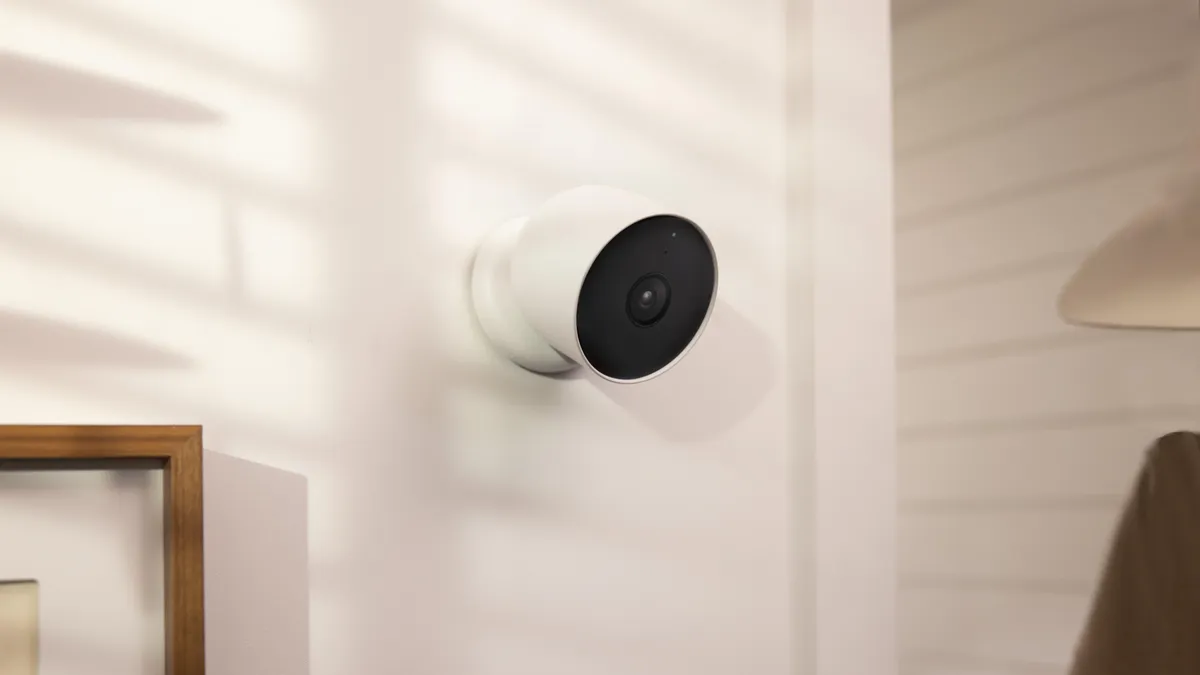
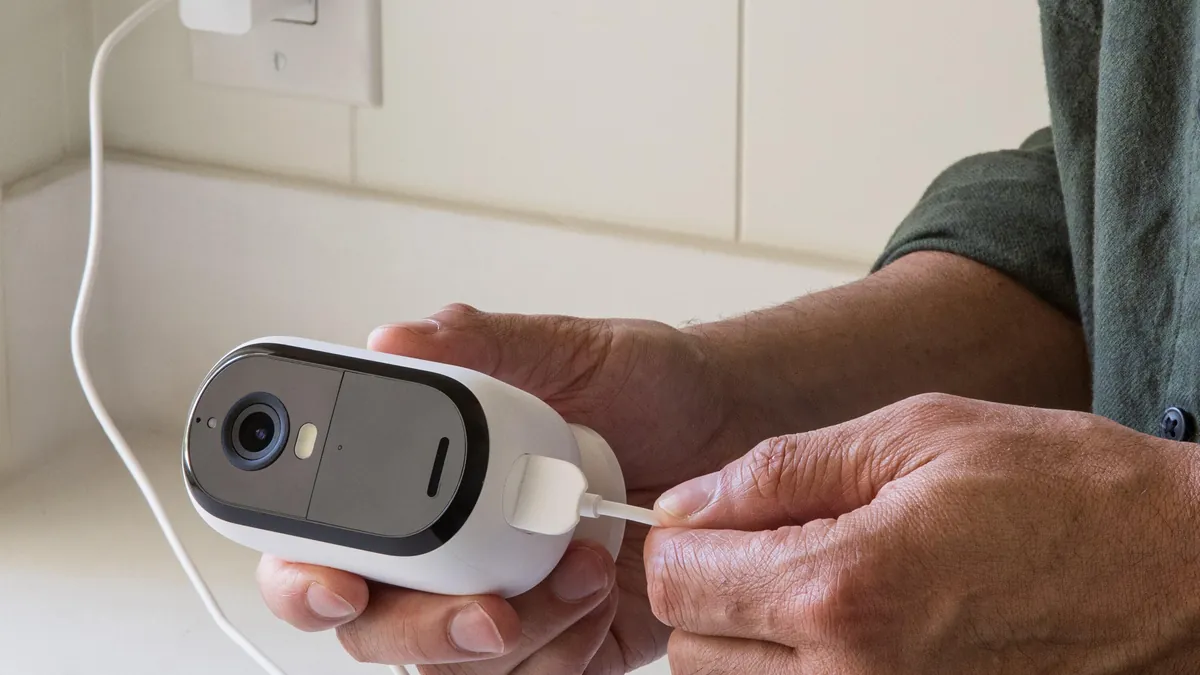
Wire before you mount. Plug the camera into the PoE switch or injector and confirm the link LED. Typical boot time is 30-60 seconds. If the camera does not appear, fix the cable before you climb a ladder. Most ip camera installation faults are cable faults, not camera faults.
1.1 Cable rules
Run Cat5e or Cat6, and keep each run under 100m (328ft). Beyond that, add a PoE switch mid-run. Leave a drip loop below outdoor connectors. Fit the waterproof boot, or wrap with self-amalgamating tape.
1.2 Mounting
Mount at 2.5-3m, tilted 15-30 degrees down toward the entry path. Test the view in the app before you tighten everything. Seal wall penetrations with silicone. Loose camera connections cause intermittent video that is hard to trace later.
Size the PoE budget before you plug in the last camera. Add the draw of every unit on the switch. Typical fixed cameras draw 5-12W each, and a 120W switch carries eight of them. Leave 20% headroom for IR LEDs at night, which push consumption to the top of the range. An injector is a fine stopgap for a single camera when no PoE switch is available.
If you are still choosing the hardware, our PoE cameras and IP cameras pages list the typical specs for each mounting style.
Step 2: Discover the Camera on Your Network
Network discovery is where most "how to set up ip camera" searches stall. The camera must appear before anything else. Open the vendor app on the same network and use auto-discovery. Typical discovery scans the whole LAN in seconds. Most cameras ship with DHCP enabled or a default IP like 192.168.1.108. If discovery fails, find the unit by its default address.
Remember that network camera setup starts with the address. If you do not know the camera's IP, you cannot reach its web UI. Write the address down before you change anything.
Vendor manuals label this phase "setup ip camera", but they assume the unit is already visible. Most tutorials skip discovery entirely. In practice, the camera that never appears in the list is the number one support call of month one.
2.1 Default IP and ports
Typical defaults: the web UI listens on port 80, RTSP on 554, and ONVIF on 8000. A camera at 192.168.1.108 is reachable at http://192.168.1.108 in any browser. If the camera sits on a different subnet than your laptop, set a temporary static address on the laptop. Or use the vendor discovery tool, which bypasses addressing entirely.
The table below lists the values you will need for every step that follows.
| Parameter | Typical value | Where you use it |
|---|---|---|
| Camera default IP | 192.168.1.x (often 192.168.1.64-108) | Browser login and NVR add |
| Subnet mask | 255.255.255.0 | Same-subnet check |
| Gateway | 192.168.1.1 | Router and internet routing |
| Web UI port | 80 (HTTP), 443 (HTTPS) | Browser configuration |
| RTSP port | 554 | Video streaming |
| ONVIF port | 8000 (some vendors 8899) | NVR and VMS discovery |
← swipe to scroll →
Decide between DHCP and a static address now. Typical integrator practice is a DHCP reservation per camera MAC. The router always hands out the same address, and the settings stay on one device. Static IPs are for special integrations where the camera must be reachable at a fixed address from another system.
2.2 Ping and web check
Confirm the path before you configure anything. A ping test answers in seconds. Then open the browser at the camera address. The first page asks for activation. That is your cue to move to Step 3.
2.3 When discovery fails
Work through the four typical causes in order. An IP conflict happens when two devices share one address. A firewall can block discovery broadcasts between VLANs. A subnet mismatch hides the camera from the scanner. A dead PoE port or cable shows no link LED at all.
- IP conflict: disconnect one device and re-scan
- Firewall: allow the vendor discovery ports on the VLAN
- Subnet mismatch: set a temporary static address in the camera range
- PoE fault: swap the port and test the cable with the tester
For larger sites, put cameras and recorders on a dedicated CCTV VLAN. Typical practice is one VLAN for cameras, one for the office network, and one for guest WiFi. The router passes traffic between them on the gateway 192.168.1.1. Camera traffic stays off the office LAN, which keeps discovery clean and limits who can reach the units.
Step 3: Activate and Secure the Camera
Activation creates the admin account. Change the default password before anything else. Typical policy: 8+ characters with mixed case, numbers, and symbols. Record the credentials in the site file. The same credentials feed the NVR add in Step 4.
3.1 Create the admin account
The activation page usually asks for a username, a new password, and a security email. Use admin as the username only if the vendor requires it. Set a unique password per site. Never reuse the default password from the label.
Write the credentials into the site file before you leave the page. Typical integrator practice is a password manager per client. Rotation policy: change camera passwords every 90-180 days. The camera stores the password in its own memory, so a lost credential means a factory reset and a full re-add.
3.2 Time and firmware
Set the time zone and enable NTP sync. Typical NTP servers keep every camera on one clock. Update firmware before you configure features. Typical updates take 5-10 minutes. Old firmware causes remote access failures later. A single clock matters at evidence time: the timeline must match across every camera and the recorder. Choose one NTP server, typically the vendor default or time.nist.gov, and use it for the whole site.
3.3 Streams and resolution
Set dual streams before the NVR add. The main stream records at full resolution, typical 5MP at 15 fps. The sub-stream serves live viewing and the app. Typical 2MP H.265 recording uses 30-60GB per camera per day. Motion-only recording cuts that to 5-10GB.
Enable the ONVIF profile in the camera's network settings while you are here. Most cameras expose it under an Integration or Protocol page. Typical ONVIF profiles work on port 8000 and accept the admin account. Disabled ONVIF is a common reason an NVR scan finds nothing.
Step 4: Add the Camera to Your NVR
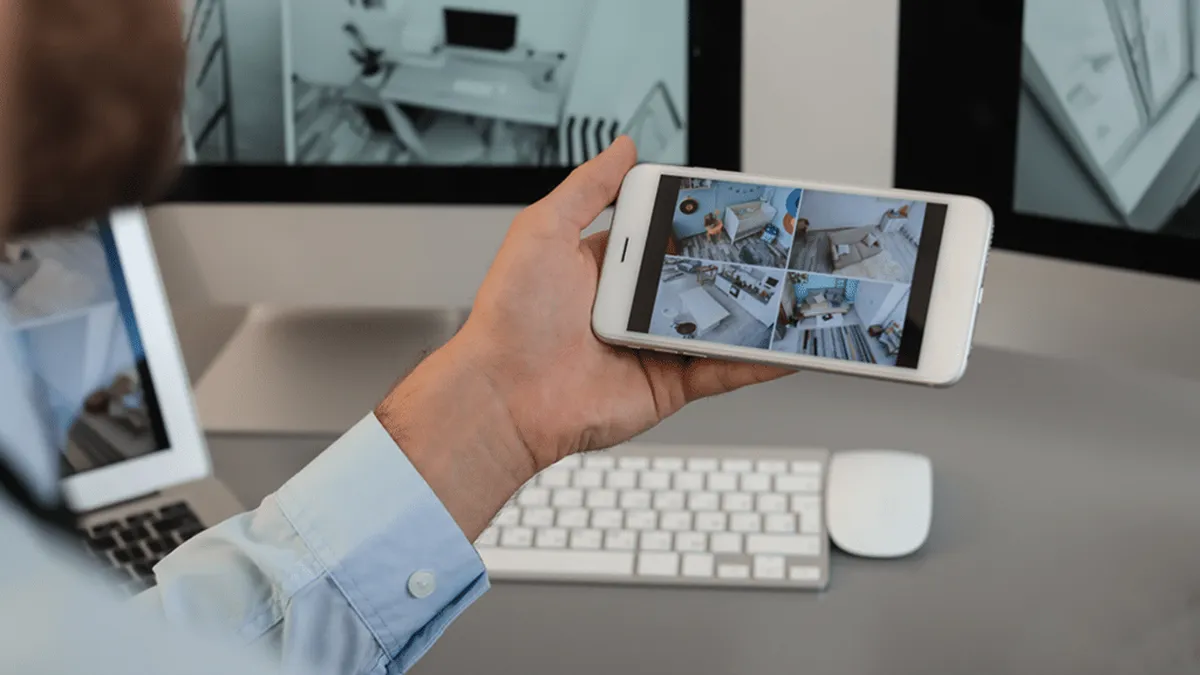
Open the NVR or VMS platform and let it scan the network. Typical platforms auto-detect ONVIF cameras in seconds. Enter the admin credentials you set in Step 3. The same flow lets you set up cctv camera sites with 4 or 40 units. It also works on our NVR models.
4.1 Add by ONVIF
Typical NVRs offer both "add by IP" and "add by ONVIF". Choose ONVIF when the platform lists the camera as a profile. Enter the camera IP, the ONVIF port 8000, and the admin credentials. Some vendors use port 8899 for ONVIF. Check the spec sheet when the add fails. Some platforms ask you to create a separate ONVIF user in the camera. Use a dedicated account with recording rights only, and keep the admin account for the site manager.
4.2 Add by IP manually
Use the manual path when auto-discovery misses the camera. Typical causes are a different VLAN or disabled multicast. Enter the IP address, port, and credentials directly. A manual RTSP add uses a URL like rtsp://admin:password@192.168.1.108:554/stream1. Confirm the channel appears and the preview shows video.
Adding cameras in batches follows the same rule. Add the first unit, verify the preview, then add the rest. Typical NVRs accept a range of IPs for batch import. Keep a written map of which channel belongs to which location. The map saves hours at handover time.
4.3 Schedules and storage
Match the recording schedule to the client policy. Continuous recording is the default for critical areas. Motion recording suits low-traffic zones. Check the recorder's free space after the first hour. A full drive stops all cameras silently.
Size the drives from the resolution you chose in Step 3. A typical 5MP H.265 camera writes 10-14GB per day at 15 fps. A 4MP unit writes 8-12GB. Sixteen cameras keeping 30 days need roughly a 4-5TB recorder at 4MP. Add 20% headroom and buy the next drive size up.
Set the retention window before the first day of recording. Typical retail sites keep 14-30 days, banks and casinos 60-90 days. The client's insurance or compliance policy usually states the number. Record the chosen window in the handover sheet. Retention that matches policy is a selling point, not an afterthought.
Step 5: Enable Remote Viewing in the App
Remote access fails silently more often than it works first try. Enable the P2P cloud ID on the camera or the NVR. Typical P2P tiers are free for standard use. Add the device to the vendor app with its serial number and verification code. Test from cellular data, not from the office WiFi. Sub-stream remote viewing uses 1-2 Mbps upstream per camera. Pairing usually takes under two minutes per device. The verification code sits on the camera label or the NVR status page. Keep the code in the site file, because re-pairing a device needs it again. Test the live view, playback, and one alert push on the cellular connection.
5.1 Port forwarding, if you need it
P2P removes the need to open ports. If the platform requires port forwarding, map port 80 and 554 to the camera IP. Use 443 when the camera supports HTTPS. Never expose the default admin account to the internet. A VPN is the safer alternative for permanent installs.
P2P access uses the camera's serial number and a verification code instead of an IP. Typical P2P tiers are free for standard remote viewing. For integrators running many sites, a site-to-site VPN keeps every camera on one private network. Both routes avoid opening ports on the office router.
5.2 Multi-site integrators
Manage every site from one VMS account or one VPN. Keep a site file with IPs, credentials, and firmware versions. This turns a 40-site portfolio into a repeatable workflow.
Document the app version on the client phone as well. Typical support calls start with a stale app that cannot reach the new firmware. Set the app to auto-update and keep one test device in the office. A monthly remote check of every site catches failures before the client does.
Step 6: Verify Recording and Alerts
Never sign off without a night walk. Check that faces are identifiable at the planned distances. Confirm motion zones trigger on people, not on trees. Test playback over cellular data, not just the office WiFi. Fix anything that fails before handover. Set the sub-stream resolution for the app preview while you are on site. A typical sub-stream at 640x360 or 704x576 loads fast on cellular links. The main stream stays for recording and playback.
6.1 Storage check
Confirm that recording actually writes. Typical 2MP H.265 continuous recording uses 30-60GB per camera per day. Compare the used space after 24 hours with the estimate. A camera that never writes is worse than no camera at all. Check the alert path too: a test motion event should reach the app within seconds. Confirm the notification sound and the push permission on the client phone.
6.2 Handover
Give the client a short checklist and the viewer credentials. Note the retention setting and how to export footage. A clear handover prevents most support calls in month one. Include the camera IP map, the reserved addresses, and the password policy. Tell the client who to call when a camera goes offline. The handover sheet is the contract that ends your liability.
Setup Checklist
Run through this list once for every camera, and once more for the whole site. Each item maps to a step in this guide. A site that passes all eleven items is ready for handover.
- Camera powers on and links on the PoE switch
- Default IP recorded, or DHCP reservation per MAC made
- Default admin password changed at activation
- Firmware updated before configuration
- Camera and NVR on the same subnet; ping passes
- Web UI reachable on port 80 or 443
- ONVIF add succeeded with port 8000 and correct credentials
- Dual streams set; recording schedule matches policy
- NTP time sync enabled on every device
- Remote viewing tested on cellular data
- Night walk passed; faces identifiable
Common Questions
How long does it take to set up IP cameras on a network?
Typical 15-30 minutes per camera after the network is prepared. WiFi models add time for SSID setup. A 16-camera site with a pre-configured PoE switch usually takes one working day.
What is the default IP address of an IP camera?
Typical defaults sit in the 192.168.1.x range, most often 192.168.1.64 to 192.168.1.108. Check the label under the camera when the address differs. The vendor discovery tool finds it either way.
Which ports do IP cameras use?
Typical ports are 80 for the web interface, 554 for RTSP streams, and 8000 for ONVIF. Some vendors use 8899 for ONVIF discovery. Check the spec sheet before you configure the firewall.
Why can't I find my camera during setup?
Typical causes: a different subnet, a firewall blocking discovery, disabled ONVIF, or a PoE port left off. Check them in that order. The ping test isolates the network layer in seconds.
Do IP cameras need a static IP address for remote viewing?
No. P2P remote viewing uses the camera serial and verification code, so the public IP never matters. Port forwarding does need a fixed address. A DHCP reservation per MAC gives you that without manual configuration.
Can I set up IP cameras without a router?
Yes, for local recording. Plug the camera and the NVR into the same PoE switch and they can talk directly. Internet access only matters for remote viewing and alerts. A local-only system is a valid first step.
The Bottom Line
IP camera network setup is a sequence, not a single event. Connect the camera, discover it by IP, activate it with a new password, and add it to the NVR over ONVIF. Then enable the app, verify at night, and hand over a checklist. Skip one step and the callback comes later. Follow the six steps and the system runs for years.
At FULLCOLORCAM we build 5MP full-color night vision IP cameras with F1.0 lenses. Every unit ships ONVIF-conformant and P2P-ready, with the default IP and ports printed on the label. Send your site plan to cj226144@gmail.com for a network-matched quote.
NEXT STEP
Ready to Upgrade to Full-Color Night Vision?
Send us your requirements — our team responds by email.
Written by
Ray ChanCCTV Buyer's Guide Author · Full-Color Night Vision Specialist. Ray helps global importers and integrators source factory-direct security cameras.