
How to Install a CCTV Camera System: Complete Step-by-Step (2026)
Table of Contents
A camera system that records nothing when it matters is worse than no system at all. Most failures trace back to the installation, not the hardware. Cables run past their 100m limit, mounts aimed at the back of heads, recorders never configured for remote access. This guide walks a complete cctv installation end to end: planning, positioning, cabling, mounting, connecting the DVR or NVR, configuring, and testing. Budget a full day for an 8-camera site and about half that for a 4-camera home setup.
Searching "how to install cctv" online returns short clips that stop at the mount plate. This cctv install guide covers the recorder side too, which is where most projects stall. Use the same sequence whether you run analog cameras to a DVR or IP cameras to an NVR. If you are still choosing hardware, our cctv kits page lists complete bundles, and the NVR guide explains recorder sizing.
Keep reading for more!
Key Facts at a Glance
- 7 steps: plan → positions → cables → mounts → recorder → configure → test
- Mount at 2.5-4m, tilted 15-20° down toward the target zone
- RG59 and Cat5e/6 runs both top out near 100m per camera
- Typical time: 3-5 hours for 4 cameras, a full day for 8
- Night test: never sign off before walking the site after dark
Step 1: Plan the System and Camera Positions
Every cctv camera installation starts with a site walk, not a drill. Walk the site twice: once in daylight, once after dark. List the points an intruder must pass: doors, gates, driveways, blind corners, stockrooms. Mark each position with a phone photo so angles can be re-checked later.
Most "how to install security camera system" searches land on single-camera clips. The full sequence below covers the recorder, the network and the night test, which is where real installations live or die.
On commercial sites, turn the plan into a sketch. Draw the building footprint, mark each camera with a number, and note the cable route back to the recorder. A one-page drawing keeps the installer and the customer on the same page. It also becomes the as-built record for future maintenance.
1.1 Count the cameras
Count entry points first, then add cameras for coverage gaps. A practical rule is one camera per entry point, plus one per long wall or aisle. A small shop lands at 4-6 cameras. A warehouse with two gates and four aisles plans 10-16. One extra camera now is cheaper than a re-pull later.
Storage follows the count. A 4MP IP camera at 15 fps with H.265+ records about 8-12 GB per day. Sixteen cameras keeping 30 days need a recorder with roughly 4-5TB of storage. Size the DVR or NVR from the camera count and retention figure before you buy.
1.2 Choose DVR or NVR
The recorder choice decides the cable type. A DVR works with analog and AHD cameras over RG59 coaxial cable. An NVR works with IP cameras over Cat5e or Cat6 network cable. Both record to a local hard drive and stream to a phone app.
| Recorder | Camera type | Cable | Max run | Best for |
|---|---|---|---|---|
| DVR | Analog / AHD (720p-1080p) | RG59 coax + power | ~100m | Reusing existing coax, budget sites |
| NVR | IP (2MP-8MP) | Cat5e/Cat6 PoE | 100m | New installs, higher resolution, PoE |
| Hybrid XVR | Both | RG59 or network | ~100m | Migrating analog to IP in stages |
← swipe to scroll →
For a new install in 2026, most integrators choose IP cameras with an NVR. PoE delivers power over the same cable, so there is no separate power run per camera. If the walls already hold coaxial cable, a DVR or hybrid recorder can reuse it.
Resolution follows the recorder too. A DVR with AHD inputs typically records up to 1080p per channel. An NVR accepts 2MP to 8MP IP cameras, and a 5MP full-color night vision camera captures usable color after dark. Match the camera resolution to the recorder per-channel capability, or the image is downscaled at the source.
1.3 Position rules
Aim cameras across entry paths, not straight down at them. Capture faces, not backs of heads. Overlap coverage so one camera's blind spot sits inside the next camera's view. Mount outdoor cameras at 2.5-4m, tilted 15-20° down. Lower mounts capture faces better; higher mounts resist tampering but lose detail.
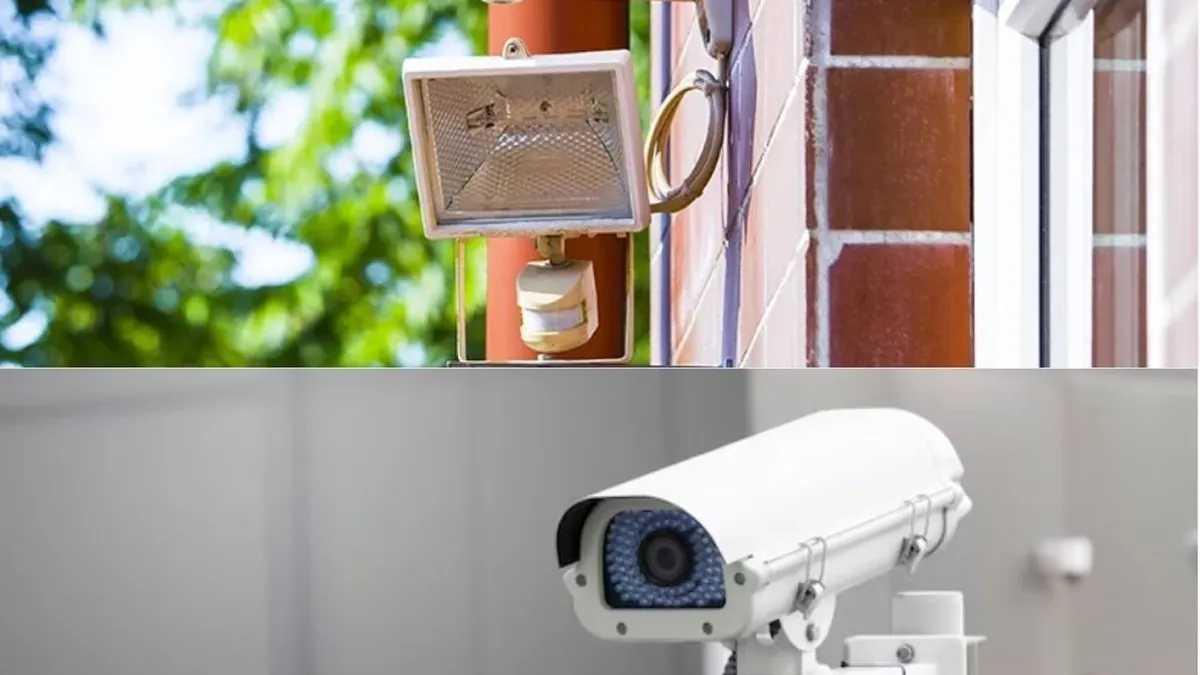
Do not point cameras into the sun. Backlight destroys facial detail. Keep 1-2m away from motion-sensor lights so IR reflection does not wash the image. If the site uses full-color night vision cameras, place them where a wall light or street lamp supplies ambient light.
Step 2: Gather Tools and Cables
Lay out everything before you start. Running back to the shop mid-install is the most common time leak. The list below covers both analog and IP builds.
2.1 Tool list
Tools: drill with masonry bit, screwdriver set, hammer, cable tester, crimp tool for RJ45 or BNC, wire strippers, ladder, tape measure and silicone sealant. Add a phone or laptop for configuration. Add a spare reel of cable and a dozen spare connectors. You will use both.
For wall runs you also need cable clips or conduit, wall plugs for brick and concrete, and a fish tape for ceiling voids. Label each cable at both ends with the camera number. Labels save hours at the recorder.
Buy cable with 10-15% extra length per run. Walls, corners and cable trays eat distance faster than expected. A 40m straight line often becomes a 55m pull once you route around beams and door frames.
Work from a ladder only on stable ground, and have a second person hold the ladder for high mounts. A drop from 3m is the most common injury on camera installs, and it costs more than any camera.
2.2 Cable types
Cable choice follows the recorder decision from Step 1. The table gives typical limits. All figures are typical values for quality cable; cheap cable derates every one of them.
| Cable | Signal | Max practical run | Notes |
|---|---|---|---|
| RG59 coax | Analog or AHD video | ~100m | Pair with 2-core power or Siamese cable |
| Cat5e | IP video + PoE power | 100m | 802.3af 15.4W per port, cameras 5-12W |
| Cat6 | IP video + PoE power | 100m | More headroom, same distance limit |
| Siamese RG59 + power | Analog + 12V DC | ~100m | One pull, two functions |
← swipe to scroll →
For analog runs beyond 100m, use a video balun or signal booster, or move the recorder closer. For IP runs beyond 100m, add a PoE switch or PoE extender mid-run. Our cctv cable selection guide compares every option in detail.
Step 3: Run the Cables
Run cables from each camera position back to the recorder location before mounting anything. Leave a loose coil at each position. The mount step goes much faster with slack to work with.
3.1 Analog runs
For a DVR build, pull one RG59 run per camera plus two power cores. Terminate the video line with BNC connectors. Keep analog runs under 100m or the signal drops and the image develops noise and color loss. Test every run with a cable tester before connecting a camera.
Analog cameras need a 12V DC supply. Use a central power box with one fused output per camera, or individual adapters. A central box keeps the recorder cabinet tidy and makes fault-finding easier.
A power supply that is too small is a common analog failure. A typical camera draws 300-500mA at 12V. A 4-camera run needs a supply rated for at least 2A, and an 8-camera run needs 4A or more. Undersized supplies cause flicker and random reboots at night.
3.2 IP and PoE runs
For an NVR build, pull one Cat5e or Cat6 run per camera. Terminate with RJ45 connectors using the T568B pinout at both ends. Keep runs under 100m. PoE switches deliver 802.3af at 15.4W per port, which covers a typical fixed camera drawing 5-12W.
Keep heavy power cables away from the data runs where possible. Route through conduit in exposed areas. Seal every wall penetration with silicone after the pull.
Keep the recorder area tidy from the start. Group cables by camera number and leave 1m of service slack at the recorder. Use a patch panel or cable comb where the site has more than eight cameras. Neat cabling makes later maintenance ten times faster.
3.3 Drip loops and weatherproofing
Leave a small loop of cable hanging below each outdoor connector. Water drips off the loop instead of running into the plug. Use the supplied waterproof boot on outdoor connectors, or wrap with self-amalgamating tape. An outdoor camera is only as waterproof as its connector.
Step 4: Mount the Cameras
Mounting comes after cabling. Hold the camera at the planned position and check the view in the app before drilling. Mark the holes, drill, insert wall plugs for brick or concrete, and secure the mount. Test the camera rotation before fully tightening.
4.1 Mount height and angle
Mount height and tilt decide what the camera records. The table lists typical settings by scene. Use 2.5-4m for most positions, with a 15-20° downward tilt toward the target zone.
| Scene | Height | Tilt | Lens |
|---|---|---|---|
| Entrance door | 2.5-3m | 15-20° | 2.8-4mm |
| Parking area | 3-4m | 15-20° | 2.8-6mm |
| Loading bay | 3-4m | 15-20° | 6-12mm |
| Indoor corridor | 2.5-3m | 10-15° | 2.8mm |
← swipe to scroll →
A 2.8mm lens identifies a person at about 5m; a 6mm lens reaches about 15m. Do not zoom in the app to fix a wide lens. Choose the lens for the distance, then mount at the height and tilt above.
4.2 Bullet versus dome mounting
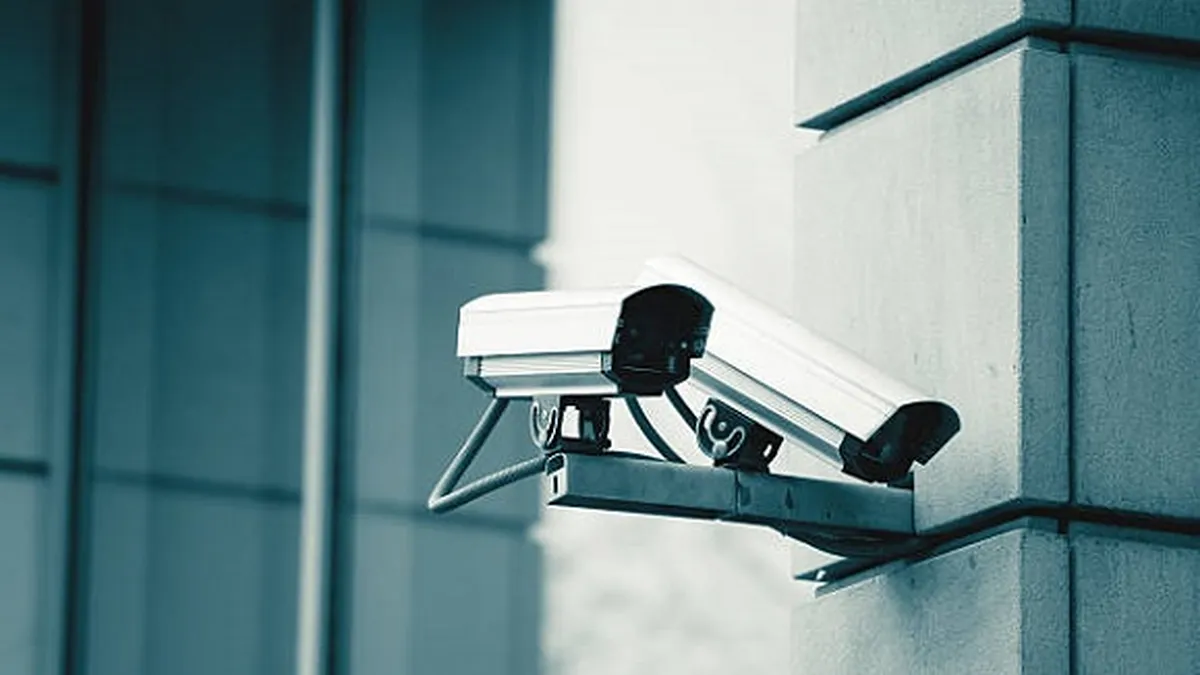
Bullet cameras mount on walls and eaves with a bracket and aim along their length. They suit perimeters and long sight lines. Dome cameras mount flush on ceilings and hide their lens direction. They suit retail floors and indoor areas. Both need a drip loop and a sealed connector outdoors.
Before you install cctv camera mounts, verify the bracket is level and the camera can still rotate after tightening. Use the metal bracket supplied with the unit. Plastic brackets flex in wind and heat.
When you install outdoor camera units, keep the lens clear of roof overhangs where rain splashes. Point the camera so the sun stays behind it. A clean line of sight beats a higher spec sheet every time.
For entry points, position the camera to capture a person face as they approach, not as they leave. A face captured on the way in is worth more than a silhouette on the way out. Walk the path yourself and check the angle in the app before final tightening.
Step 5: Connect the DVR or NVR
With mounts done and cables terminated, connect everything at the recorder location. Work through the channels one at a time so a bad cable is easy to find.
5.1 Analog wiring to the DVR
Connect each BNC line to a video input on the DVR. Connect the two power cores to the camera's 12V DC supply. A 4-channel DVR has 4 video inputs; an 8-channel unit has 8. Match the camera number to the channel number on your label.
5.2 IP cameras to the NVR
Plug each camera cable into a PoE port on the NVR or PoE switch. Power on the recorder. IP cameras appear in the channel list automatically on most NVRs using Plug and Play. If a camera does not appear, check the cable tester result first, then the port LED.
After connecting, confirm each channel shows live video before you configure anything. A camera that shows black on the recorder is a cable problem, not a settings problem. Fix it now, while the ladder is still on site. Label each channel on the recorder as you connect it, using the same names as the site plan.
5.3 Power and surge protection
Put the DVR, NVR, switch and router on a surge-protected power strip. Outdoor runs attract lightning surges even when the strike is far away. An Ethernet surge protector on each incoming outdoor cable is cheap insurance for a recorder that costs ten times as much. Add a UPS where the site loses power often.
Step 6: Configure the System
Configuration order matters. Doing it in the wrong order locks you out of the recorder or leaves the system exposed during setup.
6.1 First boot: firmware, password, time
Update the firmware first, then set a strong admin password. Change it from the default. Use 8+ characters with mixed types. Set the time zone and enable NTP time sync so recordings carry the correct timestamp. Wrong timestamps make footage useless in court.
Configure the network before adding cameras. Give the recorder a static IP. Reserve DHCP addresses per camera MAC in the 192.168.1.100-199 block. Keep cameras on the same subnet as the recorder. Separate cameras from the office network with a VLAN on larger sites.
Write the credentials down before you lock the cabinet. Keep the admin password, the P2P serial number and the site IP in the handover document. A recorder with lost credentials means a factory reset and a full re-configure on site.
6.2 Recording schedule and motion zones
Set the recording mode: continuous, motion, or scheduled. Motion recording cuts storage to roughly 5-10GB per camera per day against 30-60GB for continuous at 2MP. Most sites record continuous for critical entries and motion for the rest.
Draw motion zones around doors, gates and aisles. Exclude moving trees, roads and waving flags. Set sensitivity so a person triggers the camera but a passing car does not. Verify with a walk test.
Enable dual streams on each camera. The main stream records at full resolution. The sub-stream serves remote viewing at 1-2Mbps. Match the recorder output resolution to the camera resolution so the image is not downscaled.
Size the recorder drives from the camera count and retention. A 16-camera 4MP site keeping 30 days needs roughly 4-5TB. Use two drives in RAID mirror mode on sites where footage loss is unacceptable, and check the drive health report at handover.
6.3 Remote access
Enable P2P remote access with the recorder's serial number, or use a VPN. Do not port-forward the recorder directly to the internet. P2P needs no port mapping and keeps the recorder hidden. For remote viewing over cellular data, the sub-stream typically uses 1-2Mbps per camera.
For multi-site integrators, add every recorder to one VMS account. Keep a site file per customer: IP addresses, credentials, firmware versions and camera counts. Enable ONVIF where the platform needs it. The NVR guide covers recorder setup in more depth.
Step 7: Test and Verify
Testing is the step most installs skip, and the step that finds the failures. Plan 30-60 minutes for a full test pass on an 8-camera site.
7.1 Day test
Walk the site in daylight. Confirm every camera shows the planned view and that motion zones trigger on people, not on trees. Check playback from the recorder and from the phone app. Verify each camera against its label before moving on.
7.2 Night test
Walk the site after dark. Confirm faces are identifiable at the distances you expect. Check that IR or full-color mode engages correctly. Check for backlight hotspots and IR reflection from walls. Test remote playback on cellular data, not just home WiFi.
Verify recorded footage, not just live view. Play back a 10-minute clip from each camera and confirm motion events are stamped with the right time and camera name. Live view hides recording failures until the evidence is needed.
7.3 Handover
Hand the customer a short document: camera list, cable runs, recorder credentials, storage retention, and remote-access steps for their phone. Show them how to check a recording and how to reboot the recorder. A signed handover prevents callbacks.
Common Installation Mistakes
Most callbacks trace to a short list of repeatable errors. The table shows what goes wrong, what it typically costs, and the fix. Our common installation mistakes guide expands each one with repair costs.
| Mistake | Typical result | Fix |
|---|---|---|
| Cable over 100m | Noise, dropped frames, no signal | Measure before pulling; add an extender |
| Mount aimed at the sun | Washed-out faces | Keep the sun behind the camera |
| No drip loop | Water in connector, camera failure | Loop below every outdoor connector |
| Default password left on | System exposed online | Change on first boot |
| Motion zone includes trees | Constant false alarms | Draw zones tight; walk test |
| No surge protection | Recorder killed by a surge | Surge strip and Ethernet protectors |
| Untested runs | Dead camera at handover | Test every cable before mounting |
← swipe to scroll →
On a 16-camera site, one untested run costs a full re-pull hour plus truck time. Thirty minutes of cable testing saves a return visit. The same logic explains why installers measure runs before pulling rather than after.
Installation Checklist
- Site walked day and night; positions marked and photographed
- Camera count matched to entry points and coverage gaps
- Recorder type matches the cable plan (DVR with RG59, NVR with Cat5e/6)
- Every run under 100m and tested with a cable tester
- Drip loops and waterproof boots on all outdoor connectors
- Mount height 2.5-4m; tilt 15-20° down; lens matched to distance
- Firmware updated; admin password changed from default
- Recording schedule and motion zones configured and walk-tested
- Remote access verified on cellular data
- Night test passed; handover document delivered
Quick Answers
How long does a CCTV system install take?
Typical 4-camera home system: 3-5 hours for two people. An 8-camera commercial site takes a full day, including configuration and the night test. Cable runs through walls add time.
Do I need an electrician to install CCTV?
With PoE, no mains work happens at the camera. One low-voltage cable carries power and data. Only the recorder and switch need a standard outlet. Analog builds need a 12V supply per camera or a central power box.
What is the maximum cable length for a CCTV camera?
RG59 coaxial and Cat5e/Cat6 PoE runs both top out around 100m. Beyond that, use a PoE extender or switch for IP, or a video balun or booster for analog.
Can the system record without internet?
Yes. The DVR or NVR records to its local hard drive with no internet. Internet is only needed for remote viewing and app alerts. Local recording continues if the connection drops.
What tools do I need to install CCTV cameras?
Drill, masonry bits, screwdrivers, a cable tester, a crimp tool, a ladder and a tape measure cover most builds. A fish tape helps for ceiling voids. Rent specialized tools instead of buying them for a one-off install.
The Bottom Line
A CCTV system install is 20% hardware and 80% planning, cabling and configuration. Plan from a night walk, run every cable under 100m with drip loops, and mount at 2.5-4m with a 15-20° tilt. Connect the recorder channel by channel, configure in the right order, and test after dark. Get the seven steps right and the system records for years.
At FULLCOLORCAM we build 5MP full-color night vision cameras, bullet and dome housings, NVRs and DVRs, plus complete cctv kits for one-site and multi-site deployments. Send your floor plan and camera count for a spec-matched quote with a cable plan.
NEXT STEP
Ready to Upgrade to Full-Color Night Vision?
Send us your requirements — our team responds by email.
Written by
Ray ChanCCTV Buyer's Guide Author · Full-Color Night Vision Specialist. Ray helps global importers and integrators source factory-direct security cameras.