
How to Fix Common CCTV Problems: Troubleshooting Guide (2026)
Table of Contents
A camera not working on the night you need the footage is the most expensive failure in CCTV, because it is discovered after the incident. Roughly 70% of service calls from integrators come from seven repeatable faults. No signal, a black screen, blur, flicker, cameras dropping offline, recording failures and dead night vision lead the list. Every one of them has a short list of causes, and every one of them can be fixed in a fixed order. This guide shows you how to fix cctv problems the same way on every site. A fault that used to cost a return visit now costs a phone call.
Each problem below gets the same treatment. You get the symptom, the likely causes in order, and the fix steps in the order to run them. A master troubleshooting table at the end turns the whole guide into one page you can print and hand to a technician. This is practical cctv troubleshooting built from field callbacks, not from a manual.
Keep reading for more!
Key Facts at a Glance
- 7 fault families: no signal, black screen, blurry, flicker, offline, storage, night vision
- 70%: share of service callbacks these seven faults cause on typical sites
- 2-3 checks: most faults are found in the first two or three checks in the right order
- 100 m: the practical limit for one PoE cable run, and 300 m for quality coax at 1080p
- 8-12 GB/day: typical storage for a 4MP camera on H.265, the number behind most storage math
Problem 1: No Signal on the Monitor
Symptom: The channel shows "No Signal", "No Video" or a blue screen. The NVR or DVR cannot see the camera at all, and the fault is usually on one channel while the rest keep working.
Common causes: the camera has lost power, or the video cable and connector have failed. The channel may be set to the wrong input type, or the camera itself is dead. On IP systems, add two more: the network cable is unplugged or damaged, and the PoE port or switch is not delivering power.
Fix steps: Work from the camera toward the recorder.
- Step 1: Check the power LED on the camera. A dark camera means the power supply, the PoE port or the cable is the problem. A 12V DC adapter for a typical camera draws 0.5-1.5 A, so an adapter rated below that can die under load.
- Step 2: Swap the suspect camera onto a known-good channel. If it appears there, the camera is fine and the fault is in the original cable, port or connector.
- Step 3: For coax systems, reseat the BNC connector at both ends. A loose BNC is the most common cause of an intermittent "cctv no signal" message. Replace any connector with visible corrosion. Our BNC connector guide covers crimping and connector types.
- Step 4: For IP systems, plug a laptop into the same cable and check for link lights. No link means the cable run exceeds 100 m or the cable is damaged. Coax-based AHD and TVI systems typically reach 300 m at 1080p before the signal needs amplification.
When the whole recorder goes dark instead of one channel, suspect the recorder's power supply or the monitor input first. A single black monitor with a healthy recorder usually means the HDMI or VGA cable was knocked loose during cleaning. The CCTV cable selection guide explains which cable suits long runs and which suits short indoor drops.
Problem 2: Black Screen, Camera Online
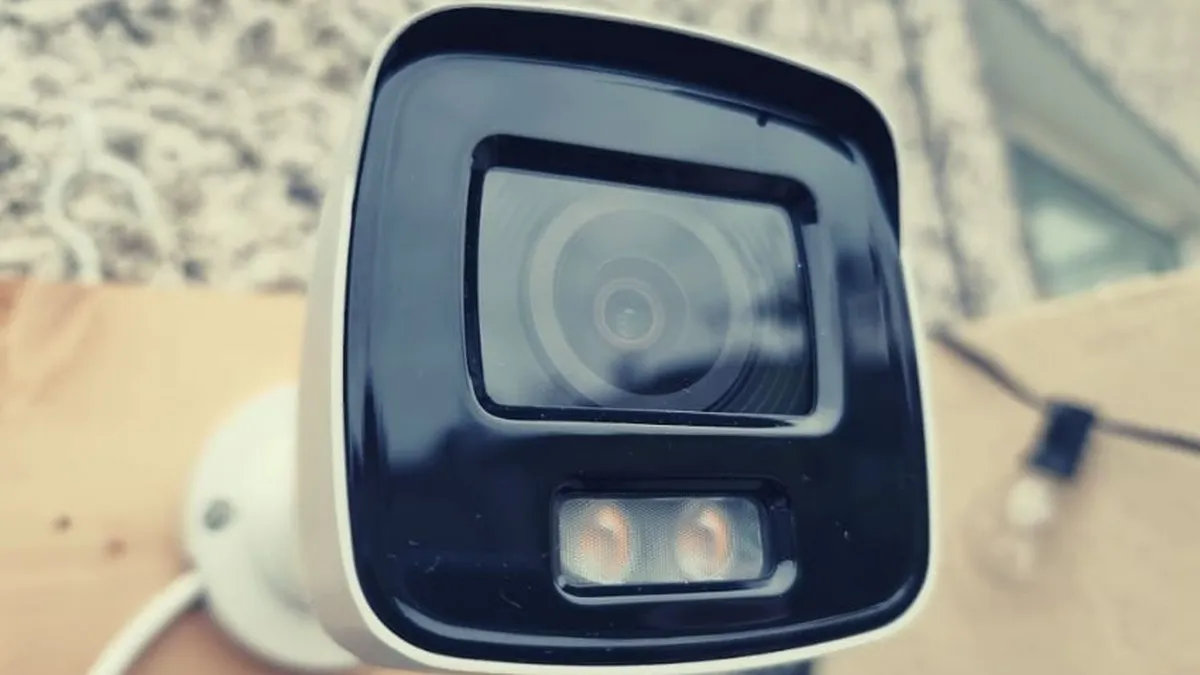
Symptom: The camera is powered and online, but the picture is black. The live view works during the day and goes dark after sunset, or it is black all the time. This is different from a no-signal fault, because the recorder still sees the camera.
Common causes: the IR cut filter is stuck in the day position, or the lens cap and dome film were never removed. The day/night threshold may be set wrong, or the scene is dark and night vision is disabled. On indoor cameras, a common one is the night vision mode turned off in software while the room light is low.
Fix steps: Run these in order, because each one takes under a minute.
- Step 1: Cover the lens with your hand for 5 seconds. If the camera switches to night mode and shows a bright infrared image on the monitor, the photocell and ICR filter are working and the problem is the scene or the settings.
- Step 2: Check the day/night setting in the camera menu. Look for Auto, Day, Night and a lux threshold. A threshold set near 0.01 lux means the camera waits too long before switching, and the image stays black in twilight.
- Step 3: Verify the IR LEDs are on when the mode switches. If the image stays black with IR on, the filter may be stuck. Tap the housing gently and listen for the ICR click. A stuck filter usually needs a camera or module replacement.
- Step 4: On full-color night vision cameras, confirm the white-light fill is enabled in software. Some models ship with the fill light disabled and produce a dark image until it is turned on.
For a fleet, keep the same day/night settings across all cameras. Mixed thresholds make one camera switch early and another late, and the dark channel always gets the complaint.
Problem 3: Blurry or Soft Image
Symptom: The picture is out of focus, soft, or sharp at one distance and blurred at another. The fault shows on live view and in recordings alike, which rules out a network or display issue.
Common causes: the focus ring has drifted or was never set, and a varifocal lens may not be locked after adjustment. Condensation inside the dome, or a focal length that does not match the mounting distance, also blurs the image. A blurry security camera image is rarely a sensor fault; it is almost always optics or environment.
Fix steps: The sequence below fixes most blur complaints in under 10 minutes per camera.
- Step 1: Clean the dome or glass first. A fingerprint, dust film or water spot reads as soft focus. Wipe with a microfiber cloth and check the live view again.
- Step 2: Adjust the focus ring while watching the live view at the target distance. For a fixed lens camera at 2.8 mm, sharpness is set at about 3-5 m and holds for the whole scene. For a 6 mm lens, set it at 10-15 m.
- Step 3: If the lens is varifocal, set the zoom first, then focus, then lock both rings. Adjusting zoom after focus invalidates the focus, which is the classic reason a varifocal camera drifts out of sharpness.
- Step 4: Check for condensation. A hazy image that clears during the day means moisture inside the housing. Dry the housing and re-seal every joint, because the condensation will return.
On night mode, some cameras shift focus slightly because the IR filter moves. If the image is sharp by day and soft at night, enable IR focus compensation. Or schedule a focus correction after the day/night switch. This is standard on modern IP cameras, but it must be turned on.
Problem 4: Flickering Picture
Symptom: The image pulses, rolls or strobes. The fault can be constant or appear only under certain lights. On recordings the flicker is baked in, so it is not a monitor or display artifact.
Common causes: a mains frequency mismatch with the local grid, LED or fluorescent lights with a fast pulse, or unstable power to the camera. A shutter speed that does not align with the light frequency makes it worse. cctv flickering indoors is very often the light, not the camera.
Fix steps: This is one of the fastest faults to fix once you know the frequency of your region.
- Step 1: Set the camera's anti-flicker mode to the local mains frequency. Regions with 50 Hz power (China, Europe, most of Asia) need 50 Hz; regions with 60 Hz (North America) need 60 Hz. The setting usually lives under Image or Exposure settings.
- Step 2: Match the shutter speed to the frequency. A 1/50 or 1/100 shutter for 50 Hz grids and 1/60 or 1/120 for 60 Hz grids eliminates most rolling bands.
- Step 3: For LED and fluorescent lights, test with one light switched off. If the flicker disappears, the lamp driver is the source. Budget LED drivers with high ripple can cause bands no camera setting will fully remove.
- Step 4: Check the power supply. On PoE, a camera that flickers when the IR LEDs turn on is drawing more current than the port or injector can deliver cleanly. A typical IP camera draws 5-8 W, and a full PoE budget on a small switch can dip below that at night.
When several cameras in the same area flicker together, suspect the recorder's video output or a shared power adapter before touching individual cameras. One bad shared supply shows up as synchronized flicker across every channel it feeds.
Problem 5: Camera Offline or Dropping
Symptom: The camera works, then shows offline for minutes or hours, then returns. The pattern repeats daily or after every reboot. Live view fails while other cameras on the same recorder stay online.
Common causes: DHCP lease conflicts, a duplicate IP address, or weak WiFi on wireless cameras. An undersized PoE budget, a marginal cable run, or a camera that crashes and fails to reboot also drops the link. The camera offline fix depends entirely on which layer of the link is breaking.
Fix steps: Find the layer first, then fix it.
- Step 1: Check the camera's IP address. If it changes after every reboot, the DHCP lease is too short or the camera is losing its reservation. Assign a static IP or a DHCP reservation per MAC address, typically from 192.168.1.100-199 on a home network.
- Step 2: Ping the camera from the recorder. If it answers but drops packets, the problem is the network link, not the camera. Check the cable for damage and keep the run under 100 m.
- Step 3: For wireless cameras, measure the signal strength at the camera position. An RSSI weaker than about -70 dBm causes dropouts. Move the router or access point, or reduce the distance by one wall.
- Step 4: Check the PoE budget. A switch rated for 802.3af delivers 15.4 W per port, but the total budget is shared. When the IR LEDs switch on, every camera on the switch draws more, and a near-full budget drops cameras one by one.
- Step 5: Update the camera firmware. Offline loops that started after an update, or that repeat every few days, are often fixed by the vendor's latest release. Check the changelog before assuming hardware.
For cameras that must be reachable remotely, the connection path adds layers: port forwarding, DDNS, P2P and VPN. A camera that works on the local network but not remotely is a router or account problem, not a camera problem. See our guide on how to connect security cameras to wifi for the wireless setup path.
Problem 6: Recording or Storage Failure
Symptom: The recorder stops writing, overwrites footage after a few days, misses hours of recordings, or reports a disk error. Playback shows gaps at predictable times, like every night or every morning.
Common causes: the drive is full, has bad sectors, or is failing. A loose SATA cable, a misconfigured schedule, or motion detection filtering out events also stops recording. Predictable gaps usually point to the schedule; random gaps point to the drive.
Fix steps: Storage faults are the most common cause of lost evidence, so treat them as urgent.
- Step 1: Check the recorder's storage status. Most NVRs show a health percentage per drive. A healthy drive should report good health; any error count above zero warrants a backup and a replacement plan.
- Step 2: Verify the recording schedule. A schedule set to record only on motion will have gaps whenever the motion detection misses an event. For critical areas, record continuously.
- Step 3: Run the storage math against the retention promise. A 4MP camera on H.265 records about 8-12 GB per day at typical bitrates, and roughly double that on H.264. An 8-camera site on H.265 needs about 80-96 GB per day, so a 4TB drive holds roughly 40 days, not the 90 a quote may promise.
- Step 4: Check the drive connection. A loose SATA cable produces random recording failures. Reseat the cable and the power connector, then run the drive health test again.
- Step 5: Check for bad sectors with the recorder's disk test tool. A drive with reallocated sectors will fail again; replace it rather than reformatting.
For integrators, set a monthly storage check on every site. A two-minute review of drive health, schedule coverage and free space prevents the single most expensive CCTV failure there is: the missing recording. Our NVR selection guide covers drive sizing in full, and the camera storage math is explained in our CCTV cable selection guide for new installs.
Problem 7: Night Vision Not Working
Symptom: the image goes dark after sunset, IR LEDs do not light, or the picture is washed out white at night. The night image may also be sharp by day and foggy at night.
Common causes: IR LED failure, a blocked photocell or day/night switch, or a stuck IR cut filter. Reflective surfaces flood the sensor with infrared, or the camera sits too close to a wall. Each of these produces a different symptom, so identify the symptom before ordering parts.
Fix steps: Match the fix to the symptom.
- Step 1: If the IR LEDs never light, check the day/night mode and the lux threshold first. If the mode is forced to Day, the camera will never switch. Set it to Auto and re-test in darkness.
- Step 2: If the LEDs light but the image is black, the IR cut filter is likely stuck. Listen for the click when the camera switches. A silent switch with a black image points to a failed filter module.
- Step 3: If the night image is white or hazy, check for IR reflection. Keep 0.5-1 m clearance between the lens and any wall, railing or sign. A typical IR range is 30-50 m for bullet cameras, and every reflective surface inside that cone bounces light back into the sensor.
- Step 4: If the night image is foggy, clean the glass and check for condensation inside the housing. IR light scatters on water droplets and frost, turning a clear day image into a whiteout at night.
- Step 5: Consider full-color night vision for the worst positions. A 5MP full-color camera with an F1.0 lens records color down to about 0.01 lux without IR LEDs, which removes the IR failure class entirely from those positions.
Night faults are the most misdiagnosed family in this guide. A camera that looks fine at noon tells you nothing about 02:00, so verify every night fix after dark before closing the ticket. Many night faults start as installation mistakes that only surface months later.
Master Troubleshooting Table
Print this table and keep it with the recorder manual. Each row gives the symptom, the most likely cause, the fastest check, and the first fix to try. The table follows the order of probability, so run the checks in the order shown.
| Symptom | Most likely cause | Fastest check | First fix |
|---|---|---|---|
| No signal on one channel | Loose BNC or dead power adapter | Power LED on the camera | Reseat connector, swap adapter |
| No signal on all channels | Recorder power or monitor input | Check recorder LEDs, monitor source | Replace PSU, change HDMI/VGA input |
| Black screen, camera online | ICR filter stuck or mode forced to Day | Cover the lens for 5 seconds | Set day/night to Auto, test switch |
| Blurry image | Dirty glass or drifted focus | Clean the dome, check focus | Clean, re-focus at target distance |
| Flickering picture | Mains frequency mismatch | Check local grid 50 or 60 Hz | Set anti-flicker and shutter to match |
| Camera offline, returns later | DHCP conflict or weak WiFi | Ping the camera IP | Static IP, check RSSI above -70 dBm |
| Camera drops at night | PoE budget shortfall | Watch wattage when IR turns on | Move camera to a port with headroom |
| Recording gaps | Schedule or motion filter | Check schedule, gaps pattern | Record continuously on critical areas |
| Drive error reported | Bad sectors or loose SATA | Drive health percentage | Backup, reseat cable, replace drive |
| No IR at night | Mode forced to Day | Check day/night mode at night | Set Auto, confirm lux threshold |
| White night image | IR reflection off a surface | Look for walls inside the IR cone | Add 0.5-1 m clearance |
| Foggy night image | Condensation in housing | Inspect glass for droplets | Dry, re-seal housing joints |
← swipe to scroll →
Two rules make the table faster to use. First, always check power before signal: a dark camera explains every downstream symptom. Second, verify the fix under the same conditions as the fault. That means after dark for night problems, and during the event window for offline problems.
Fix-It-Once Checklist
For integrators and maintenance teams, this checklist turns the seven problems into a preventive routine. Run it quarterly on every site, and the callback rate for these faults drops to near zero.
- Power LEDs verified on every camera, at night as well as by day
- All BNC and RJ45 connectors seated, no corrosion, no loose boots
- Cable runs documented, none above 100 m for network or 300 m for coax
- Static IPs or DHCP reservations assigned per MAC address
- Anti-flicker set to the local mains frequency on every camera
- PoE budget calculated: total camera wattage below 80% of switch budget
- Drive health checked, free space matches the retention promise
- Recording schedules verified for continuous coverage on critical channels
- Day/night mode on Auto, lux thresholds uniform across the fleet
- Night test walked after dark: every channel readable at the target distance
- Firmware versions recorded and update policy scheduled
- Master troubleshooting table printed and kept with the recorder
For wholesale buyers and multi-site operators, keep one checklist per site in the project file. It gives the maintenance team a repeatable process and gives the client a defensible record if a recording is ever questioned.
Quick Answers
Why does my CCTV camera show no signal?
Check power first, then the cable and connector, then the channel settings. A loose BNC connector is the most common cause on coax systems. A dead power adapter or PoE port leads on IP systems. Swap the camera onto a known-good channel to isolate it.
Why is my camera black at night even though it is online?
Usually the day/night mode is forced to Day, the IR cut filter is stuck, or the night vision mode is disabled in software. Cover the lens for 5 seconds to test the switch. If the picture stays black with IR on, the filter module likely needs replacement.
How do I stop a security camera from flickering?
Set anti-flicker mode and shutter speed to your local mains frequency. Use 1/50 or 1/100 for 50 Hz regions, and 1/60 or 1/120 for 60 Hz regions. If the flicker only happens under LED lights, the lamp driver is the source and may need replacing.
Why does my camera keep going offline every day?
The most common causes are a DHCP lease conflict, a weak WiFi signal, or a PoE budget that fails at night. Assign a static IP, check the RSSI stays above -70 dBm, and confirm the switch has headroom at night.
The Bottom Line
Seven fault families cause most CCTV downtime, and each one has a fixed diagnostic order. Check power before signal, isolate the camera before replacing it, match flicker settings to the grid, and verify every night fix after dark. The master troubleshooting table above compresses the whole method onto one page. A technician can then resolve most faults in under 10 minutes per camera.
At FULLCOLORCAM we build 5MP full-color night vision IP cameras with F1.0 lenses, IP66 housings and ONVIF conformance. We also make NVRs and PoE cameras for complete systems. Every unit is tested before shipping, including a day/night switch test and a 24-hour burn-in. Email cj226144@gmail.com with your symptom list and site photos. We will diagnose it, or suggest a camera model that removes the fault class entirely.
NEXT STEP
Ready to Upgrade to Full-Color Night Vision?
Send us your requirements — our team responds by email.
Written by
Ray ChanCCTV Buyer's Guide Author · Full-Color Night Vision Specialist. Ray helps global importers and integrators source factory-direct security cameras.